
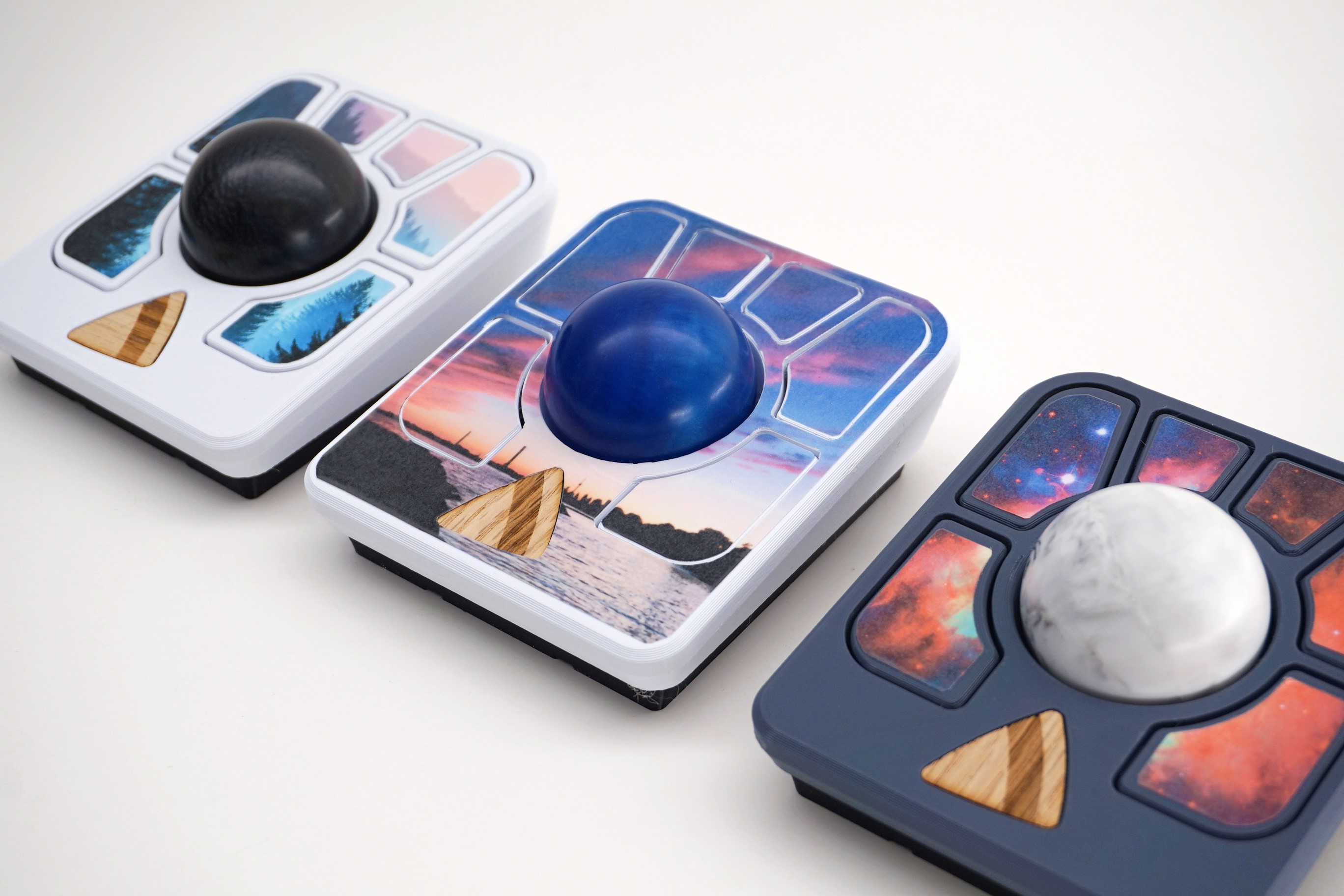
A little while ago, my partner had the idea to add some flair to her Adept with a custom sticker. The end result was so good that I wrote down her method so that you can customize your own Adept, too.
Here is the full tutorial on how you can make your very own Adept decal, with just a printer and a few materials you can get at any office supply store.
Tools needed
- Colour printer
- Craft knife, scissors, or some method of cutting out the shape of the sticker
Materials needed
- Printer paper (optional)
- Sticker paper for your printer
- Peel-and-stick laminate sheets (optional but recommended)
Instructions
Step 1: Download the “button outline” image here.

Step 2: Select the picture you want to use as a decal. Make sure the picture has sufficient resolution to avoid a grainy or blurry final result.
Step 3: Import the “button outline” into your favourite photo editor. For the sake of this tutorial, these instructions use Pixlr Editor, a free online photo editor.
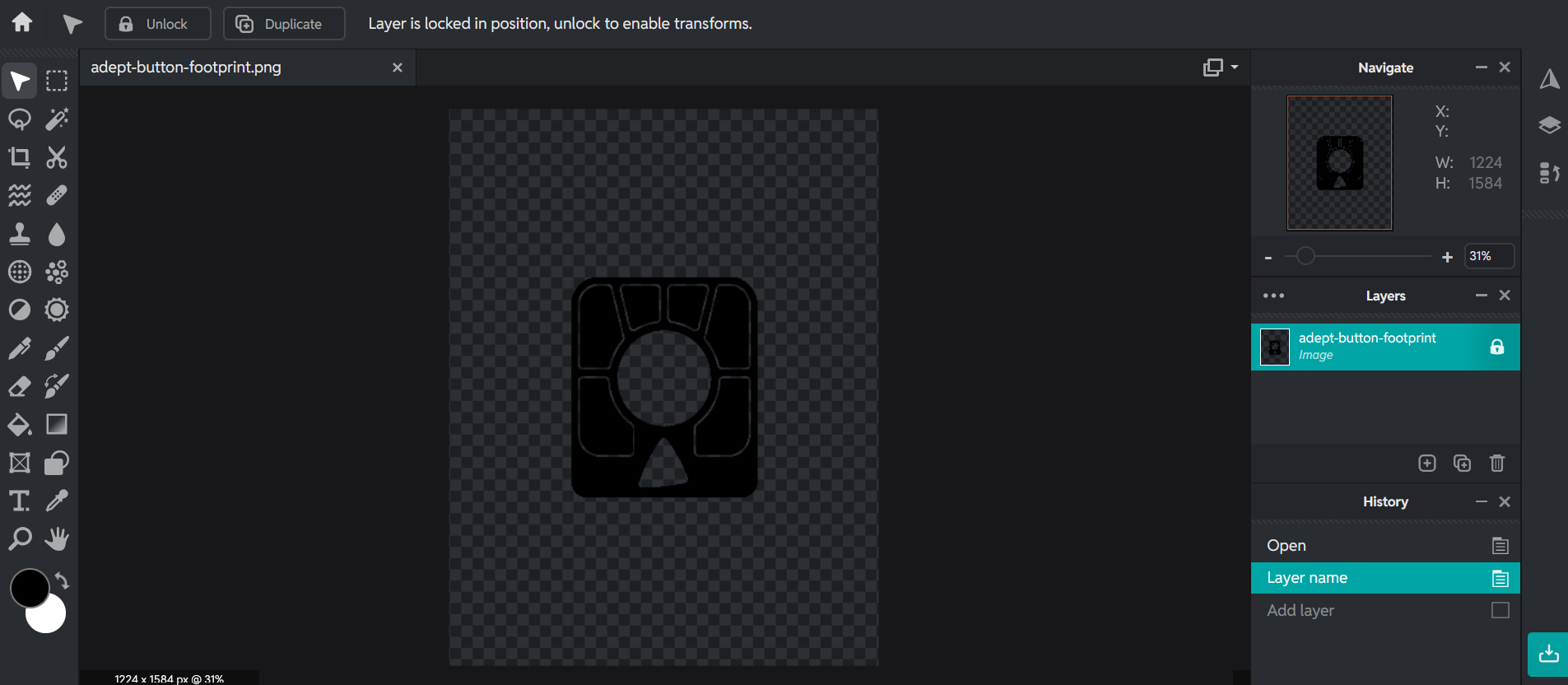
As you can see, the “button outline” has been imported, and is on the “adept-button-footprint” layer.
Step 4: Create a new layer, and import your decal image to it.
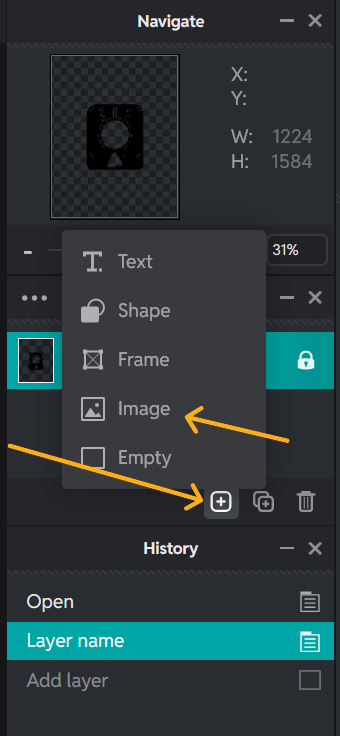
Make sure your image is below the “button outline”. To do this, find the Layers menu; the “button outline” should appear first, and the decal image should appear below it.
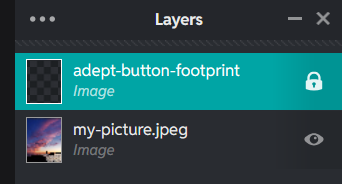
Step 5: Right click the “button outline” layer in the layers menu to the right (in our case, its named “adept-button-footprint”). Under Blend Mode, select Mask.
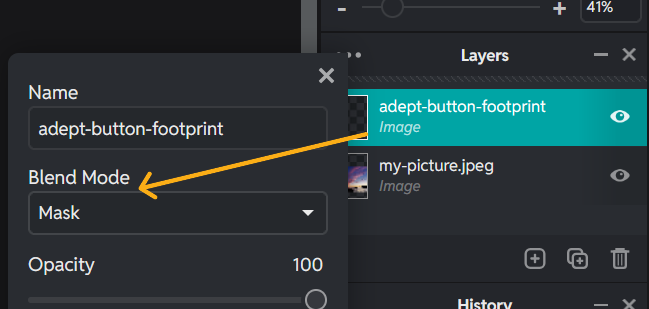
When you set the Blend Mode to Mask, you should see your decal image, but in the shape of the “button outline”.
Step 6: Download the completed image as a PNG file.
Step 7 (optional): Print the completed image to scale on cheap paper to avoid wasting sticker paper if your printer’s scaling is off.
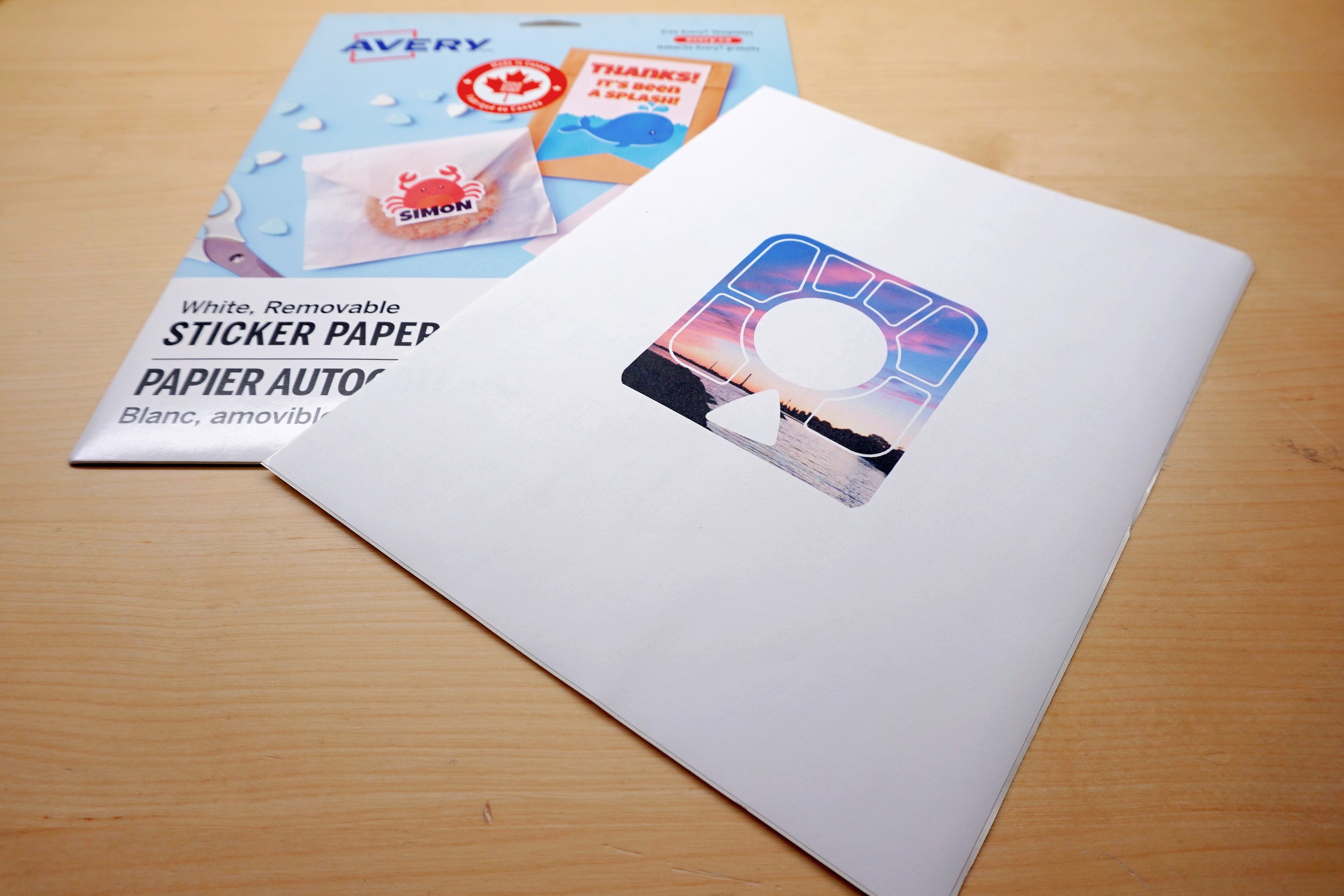
Step 8: Print the completed image on to sticker paper.
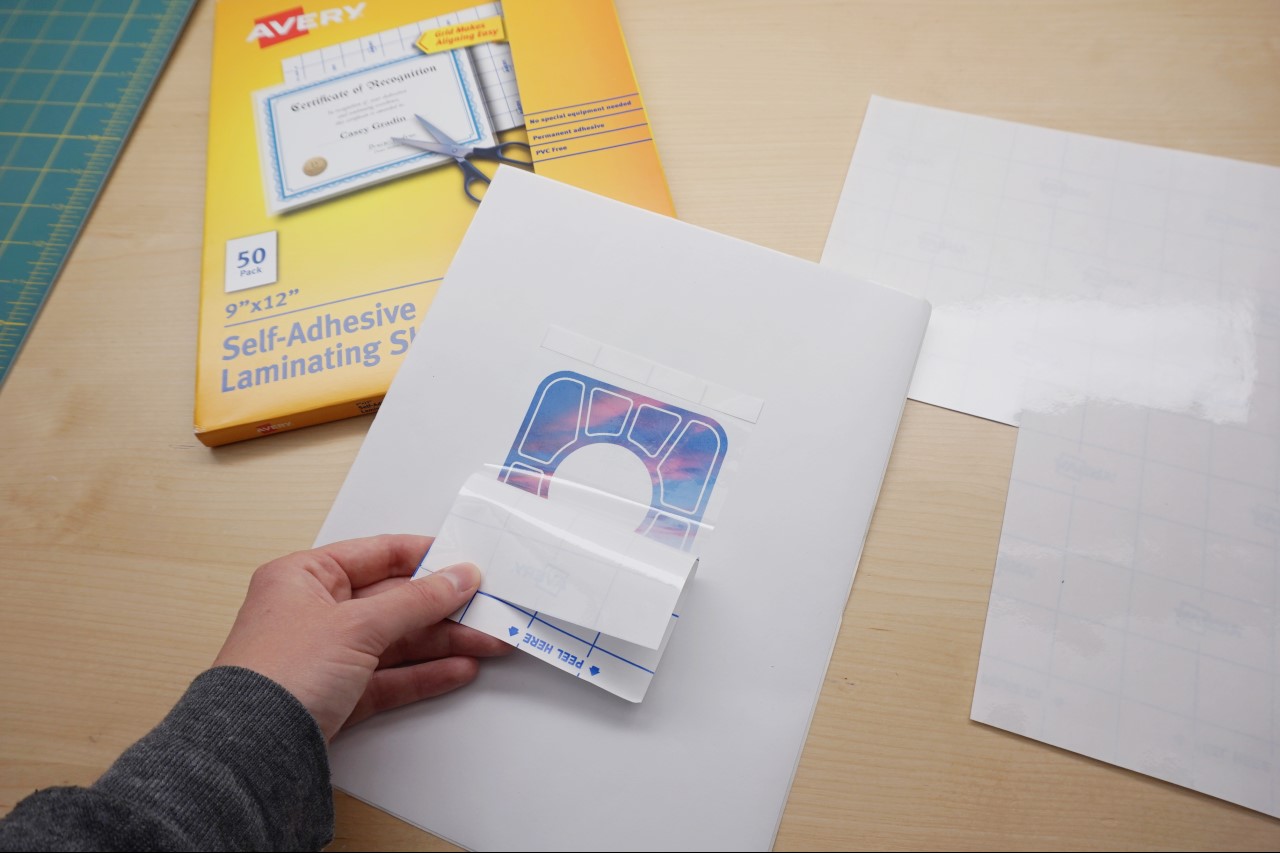
Step 9 (optional): Apply an adhesive laminate sheet to protect the sticker. This helps preserve the colour of the sticker.
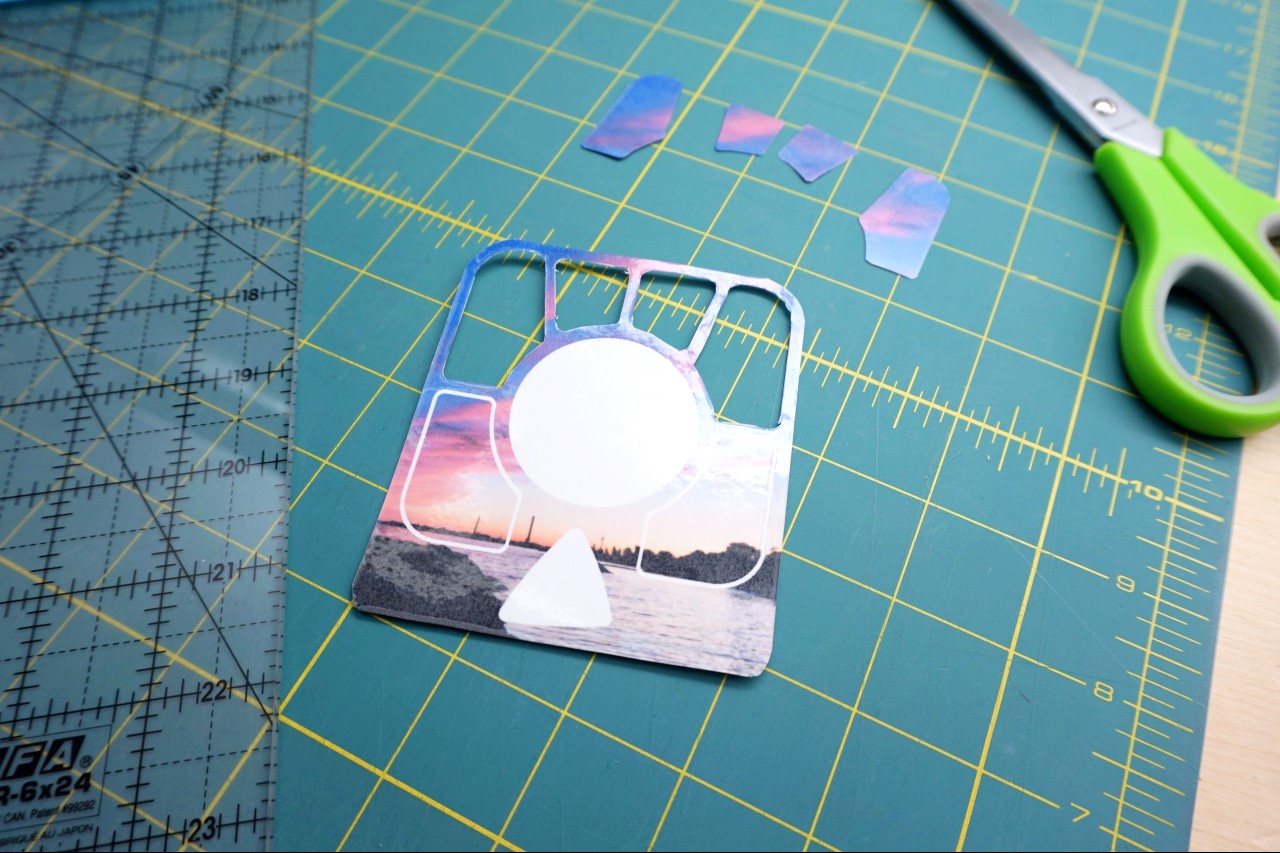
Step 10: Cut out the sticker. The easiest way to do this is if you have access to a tool like a cricut; alternatively, a craft knife and a pair of scissors can be used.
Step 10: Apply the sticker and admire your customized Adept!
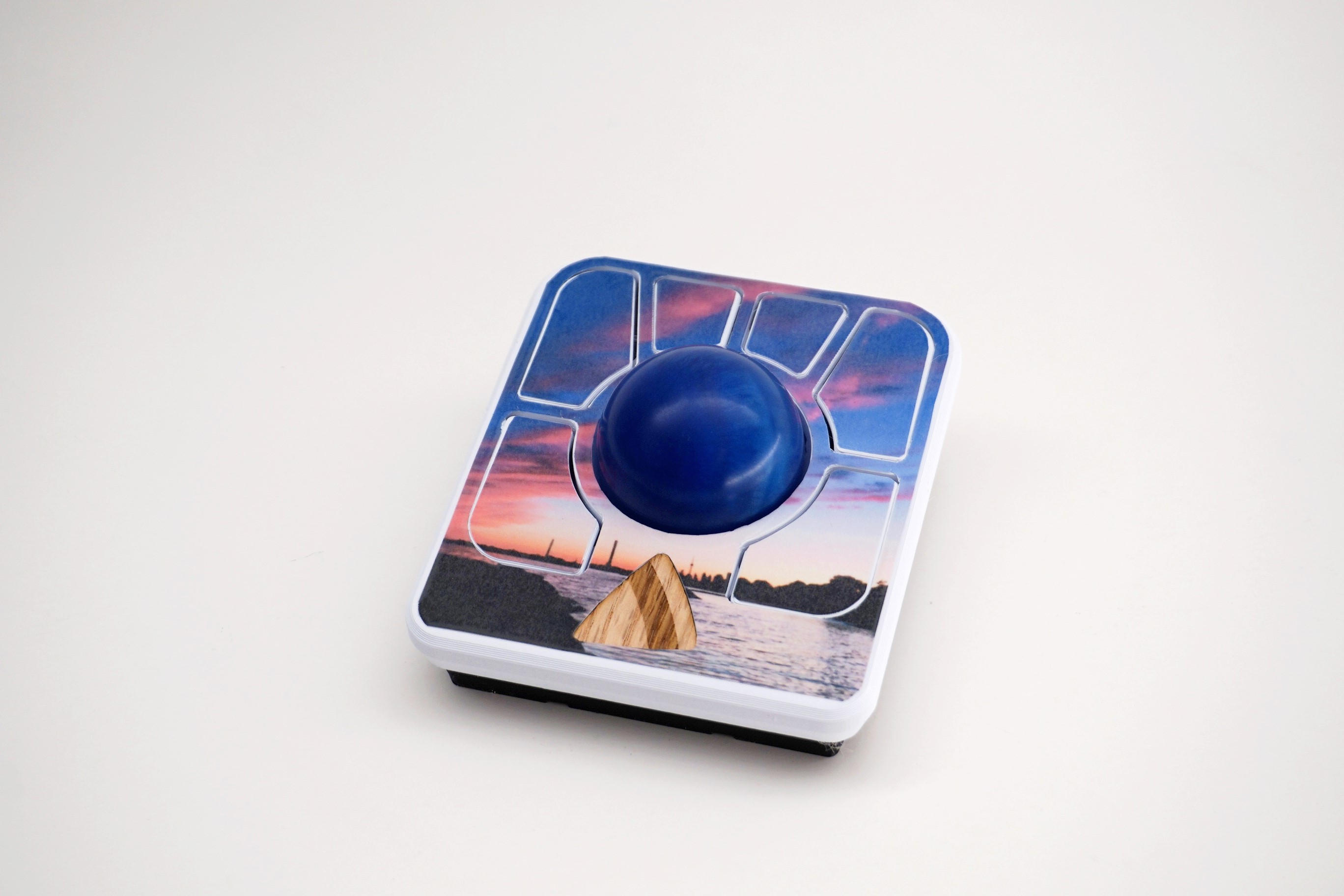
Share your decals with us!